
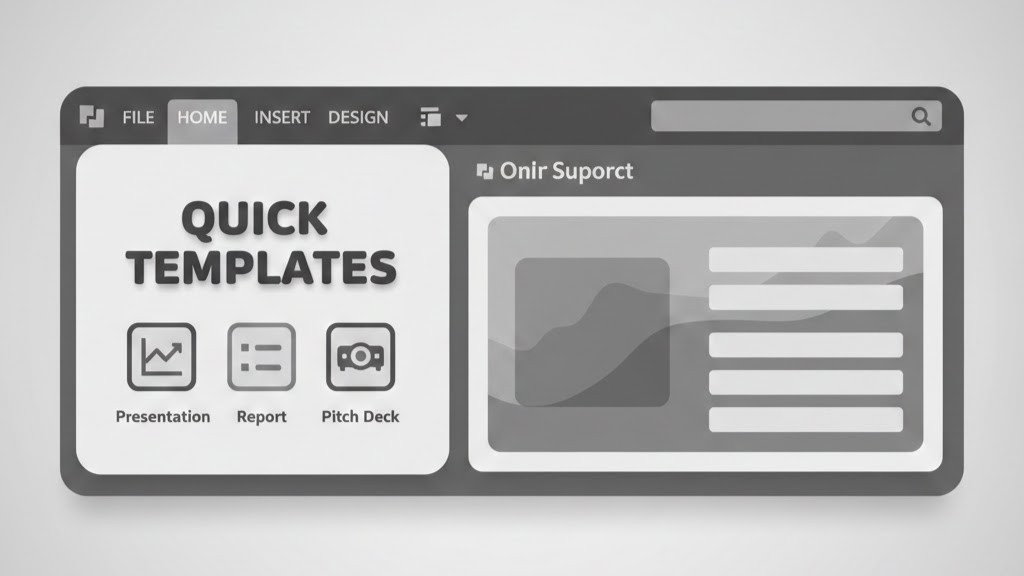
Creating high-impact business presentations under tight deadlines is a common challenge in corporate environments. Teams often waste hours reformatting slide margins, re-aligning text boxes, adjusting font sizes, and manually pasting company logos across dozens of slides. By leveraging Quick Templates in Microsoft PowerPoint, organizations can eliminate repetitive formatting work. Master templates lock in visual hierarchy, color palettes, and typography guidelines, allowing presenters to focus entirely on narrative structure and key message delivery.
Integrating standardized Slide Masters, custom layout libraries, and pre-built theme colors directly into corporate Office 365 environments establishes a single source of design truth across all enterprise departments. Automated layouts enforce brand compliance effortlessly, ensuring that every slide deck—whether created by sales, operations, or finance—maintains uniform margin spacing, correct corporate logo placements, and pre-formatted chart styles. Eliminating manual design tweaking not only accelerates deck creation times from hours to minutes, but also prevents low-quality visual clutter, allowing stakeholders and executive decision-makers to focus cleanly on core business metrics and strategic arguments.
What Are Quick Templates in Microsoft PowerPoint?
A PowerPoint Quick Template is a pre-formatted blueprint file saved in the .potx format. Unlike a standard presentation file (.pptx), opening a template generates an untitled copy of the master structure, preserving the original blueprint from accidental overwriting.
PowerPoint templates store crucial structural assets, including:
- Custom Theme Colors and Font Families
- Slide Master Layouts
- Pre-Set Visual Formatting
- Reusable Slide Assets
Why Quick Templates Are Essential for Business Efficiency
Adopting standardized Quick Templates delivers immediate operational benefits across all organization levels:
- Drastic Reduction in Production Time
- Consistent Brand Governance
- Fewer File Formatting Errors
- Seamless Team Collaboration
How to Create and Customize a PowerPoint Quick Template
Building a custom template requires setting up master layouts in PowerPoint’s backend environment. Follow this step-by-step process to build a production-ready template:
1. Open the Slide Master View
- Launch Microsoft PowerPoint and open a fresh presentation.
- Navigate to the View tab on the top ribbon.
- Click Slide Master in the Master Views group.
- The left pane will display the parent Master Slide at the top, followed by child layout slides beneath it.
2. Establish Global Theme Colors and Typography
Changes made to the top parent Master Slide automatically apply to all child layouts underneath:
- Select the top parent Master Slide.
- Click Colors on the Slide Master ribbon tab and select Customize Colors… to enter your exact corporate HEX or RGB color codes.
- Click Fonts and choose Customize Fonts… to assign primary header and body fonts.
- Set default text sizes, line spacing, and bullet styles within the parent title and body placeholders.
3. Design Core Layout Variants
Customize individual child slides to accommodate different types of content:
- Title Slide
- Content & Comparison Slides
- Data & Chart Layouts
- Section Dividers
4. Insert Custom Content Placeholders
To ensure users insert media in the correct dimensions without disrupting alignment:
- Click Insert Placeholder on the Slide Master ribbon tab.
- Choose from Picture, Text, Chart, Table, SmartArt, or Media.
- Draw the placeholder box on your selected layout slide.
5. Save as a Reusable Template (.potx)
- Exit the Master view by clicking Close Master View.
- Go to File > Save As (or Save a Copy).
- Change the file type dropdown from PowerPoint Presentation (.pptx)* to PowerPoint Template (*.potx).
- PowerPoint will automatically redirect the save path to your local Custom Office Templates folder.
- Name your template (e.g., Corporate_Master_Template_2026.potx) and click Save.
Deploying Quick Templates Across Your Organization
Once your .potx file is built, deploy it across your organization so every team member can access it:
Method 1 – Local Office Template Pinning
- Share the .potx file with your team via email or internal drive.
- Instruct users to save the file into their local directory path:
C:\Users\[Username]\Documents\Custom Office Templates\ - Users can then launch PowerPoint, click File > New, select the Custom tab, and pin the template for one-click access.
Method 2 – Microsoft 365 Organizational Asset Library (OAL)
For enterprise organizations, IT administrators can upload the .potx template directly into the organization’s tenant library using SharePoint and PowerShell. The template will automatically appear under the [Company Name] tab inside every employee’s PowerPoint application.
Best Practices for Effective Template Design
To ensure your template is easy for all team members to use, follow these design standards:
- ✔ Maintain High Color Contrast
- ✔ Limit Font Variations
- ✔ Use Standard Aspect Ratios
- ✔ Provide Clear Layout Labels
- ✔ Keep Visuals Lightweight
Conclusion
Quick Templates in Microsoft PowerPoint are a fundamental tool for improving corporate productivity and maintaining brand consistency. By building a structured .potx template using the Slide Master view, organizations can eliminate hours of repetitive formatting and ensure every presentation looks polished and professional. Investing time into building a robust template system yields continuous productivity gains across all business communications.
Centralizing custom .potx files within an enterprise cloud directory or distributing them via Microsoft 365 organization asset libraries guarantees that every department operates from the exact same design foundation. When pre-configured layout placeholders, locked color palettes, pre-formatted tables, and brand-approved typography are built directly into the file architecture, employees no longer need to manually rebuild slide structures for quarterly business reviews, client proposals, or board decks. This systematic approach to slide creation minimizes technical friction, protects corporate visual identity across global teams, and allows professionals to shift their focus from tedious visual formatting toward crafting compelling, data-driven business narratives.
FAQs
1. How do I edit an existing PowerPoint Quick Template (.potx)?
To edit an existing template, launch PowerPoint, click File > Open, browse to your saved .potx file, and open it directly rather than double-clicking it from File Explorer (which creates a standard .pptx deck instead). Once opened, navigate to the View tab and select Slide Master. From this master interface, you can update baseline color palettes, adjust typography hierarchies, modify logo placements, or add new custom slide layouts. After finalizing your visual and structural modifications, click Close Master View and save the file directly to overwrite the existing template blueprint across your enterprise directory.
2. Where are custom PowerPoint templates stored on Windows?
By default, Microsoft PowerPoint automatically routes and saves custom template files in the local user profile directory: C:\Users\[Your-Username]\Documents\Custom Office Templates\. Storing .potx files in this specific local path ensures that PowerPoint displays them automatically under the “Personal” tab whenever a user clicks File > New. For enterprise environments, IT administrators can re-route this default path to a shared cloud directory or deploy an Organization Assets Library in SharePoint, allowing all employees to access the central corporate template system directly from their desktop applications.
3. Can I convert an existing .pptx presentation into a Quick Template?
Yes. Open the existing .pptx presentation file, navigate to the Slide Master view, and remove any slide-specific text, sensitive corporate data, or one-off images that should not appear in the foundational master blueprint. Next, ensure all master text boxes use generic content placeholders rather than static text. Once the layout structure and visual hierarchy are cleaned up, navigate to File > Save As, select PowerPoint Template (*.potx) from the file format dropdown menu, and save it to your desired template directory.
4. Why do my custom fonts change when opening a template on another computer?
When a destination computer lacks your organization’s custom brand fonts installed locally, Windows and PowerPoint automatically substitute them with default system fonts like Arial or Calibri, disrupting your carefully designed visual hierarchy. To guarantee font fidelity across global teams and external client devices, navigate to File > Options > Save before saving your final .potx file. Scroll to the bottom section and check the box for Embed fonts in the file, selecting “Embed all characters” to ensure all users can edit and present the deck without font rendering issues.
5. How does Copilot in PowerPoint work with custom templates?
Microsoft Copilot integrates directly with custom .potx templates by analyzing the underlying Slide Master architecture, structural layout placeholders, theme color palettes, and typography rules. When a user prompts Copilot to draft a new presentation or transform a Word document into slides, the AI engine maps the generated narrative content into your pre-configured master layouts. This ensures that AI-generated slides automatically inherit your corporate branding, correct logo placements, and formatted text boxes without requiring manual post-generation cleanup or reformatting.